
AI tools labeled "MCP-supported" have multiplied over the past six months. Claude, ChatGPT, and Gemini have all officially adopted the Model Context Protocol (MCP): connect your own MCP server, and the AI can read your external data and tools directly. Why feeding an AI your own numbers makes its answers concrete is something I cover in Why AI only gives generic advice.
But if you look only at the checkmarks in a comparison table and assume "they all connect the same way," you'll trip the moment you actually get your hands dirty. I connected my own read-only MCP server to all four — Claude, ChatGPT, Gemini CLI, and Microsoft Copilot. Bottom line: the checkmark is identical, but the substance is not. The eligible pricing plans, the way authentication works, and how the tools get called all differed from client to client. This article documents that first-hand test as of July 2026. Since each client's support status can change at the vendor's discretion, check the latest official docs as well before you connect.
Table of contents
This article in brief#
-
The same entry point doesn't mean the same substance
The checkmark only says "connects via MCP." Eligible plans, auth, and how tools appear split by client
-
Four clients diverged mainly on three points
Plan eligibility, how the first connection authenticates, and how the tool list appears all behaved differently
-
The concept of connecting is easy; the recurring cross-check is heavy
Connecting one is not hard. What's hard is re-learning the differences each time a client is added, and continually verifying the same server behaves the same way
-
A read-only server lowers the bar for testing
A server that never modifies data can't break anything no matter which client you try — so you can run these compatibility checks freely
What "MCP support" actually covers differs by client#
Bottom line: the "MCP-supported" checkmark only guarantees that a client connects through the shared MCP mechanism — it does not standardize which plan, which auth, or which tools become visible.
MCP is a shared protocol for an AI client and an external server to talk to each other. Because clients speak the same protocol, one server can connect to multiple AIs — which is why the comparison tables line up a checkmark for each vendor. But that's as far as the checkmark goes. The eligible pricing plans, how the first authentication works, and how tools look once connected all hide beneath the checkmark, and you won't know until you actually connect.
The connection flow itself looks similar across clients. The AI client opens an OAuth 2.1 consent screen; you grant access to the server; the client sends tools/list to receive "the list of available tools," then calls the read-only tools from that list. This shared sequence is shown below.
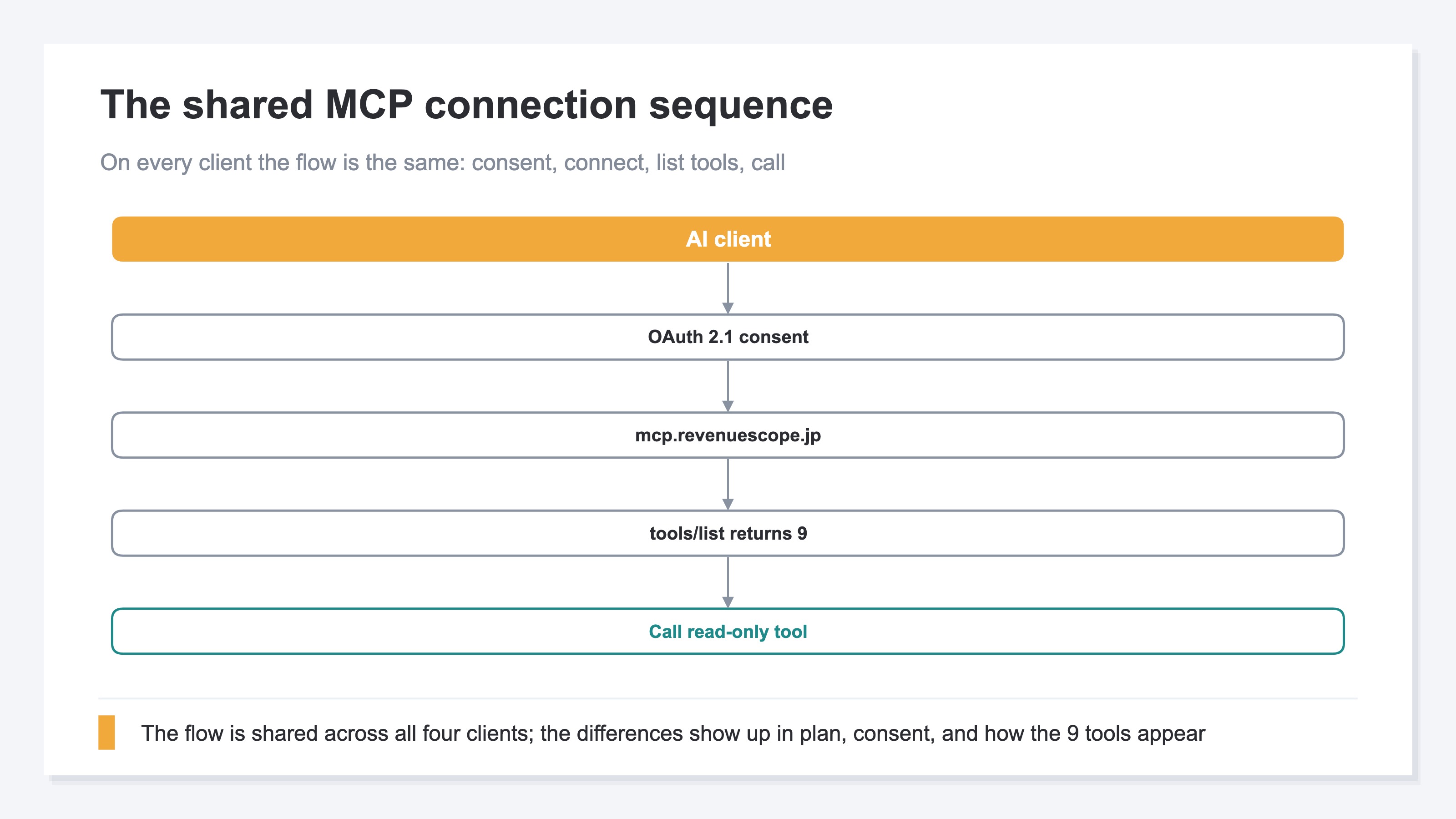
The test setup here was my own read-only MCP server (mcp.revenuescope.jp, OAuth 2.1, read-only, nine tools) connected to the four clients — Claude, ChatGPT, Gemini CLI, and Microsoft Copilot (all as of July 2026). Official MCP server directories (registries) for discovering servers to connect are also maturing, but this article assumes you're connecting a server you built yourself.
Three differences measured across four clients#
Bottom line: even with the same server, behavior split on three points — plan eligibility, how authentication works, and how the tool list appears.
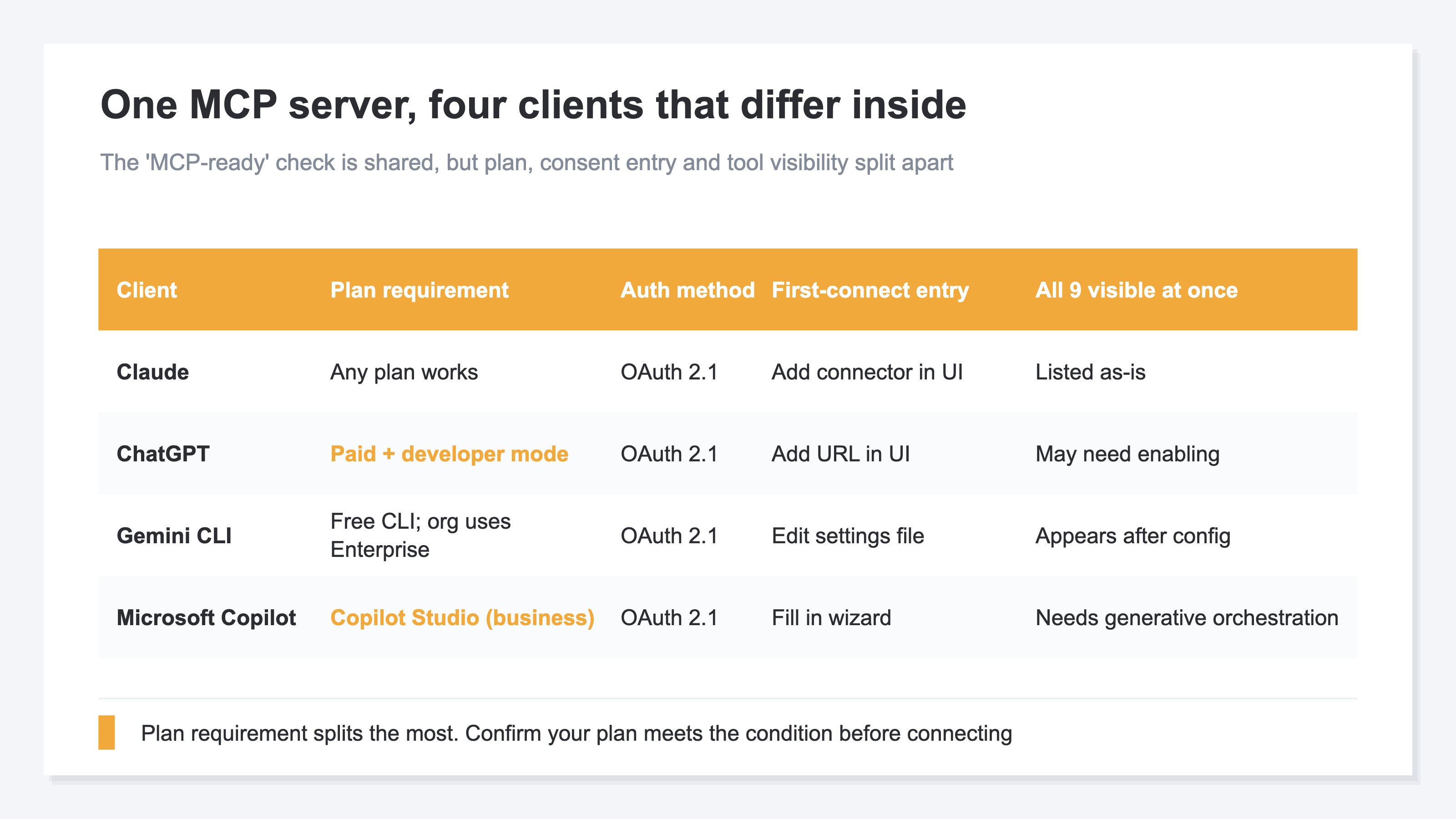
First, the whole picture in a single table. Line the clients up side by side and the differences hiding beneath the checkmark come into view.
Difference 1: plan eligibility#
Pricing-plan eligibility split the most clearly of the four.
- Claude: Works on every plan. Even on Free you can register one custom connector; Pro / Max / Team / Enterprise raise the limits[2]
- ChatGPT: Requires a paid plan (Plus / Pro / Business / Enterprise / Edu) with "developer mode" turned on. Not available on Free[3]
- Gemini: The open-source Gemini CLI (free) handles MCP through a config file. For organizations, Gemini Enterprise is the entry point; the consumer Gemini app is not the target for this use case[4]
- Microsoft Copilot: You connect through the business-oriented Copilot Studio with "generative orchestration" turned on. This is separate from the free personal Copilot[5]
Decide on adoption from the checkmark alone and you fall into the blind spot of "my plan actually couldn't use it." You need to first confirm your current plan meets that client's eligibility conditions.
Difference 2: how authentication works#
Every client builds on OAuth 2.1[1]. That's where the commonality ends — "where the consent screen appears and where you write the settings" diverged.
Claude and ChatGPT are GUI-leaning: add a connector or server URL on screen and the OAuth consent screen opens. Gemini CLI, by contrast, is file-editing-leaning — you write the server details into a config file (settings.json). Gemini CLI also expands environment variables inside that config file and, by default, conceals them so no stray environment variables leak to the external server[4]. Copilot Studio has you enter the server name, description, and URL into a wizard[5].
Even under the same "OAuth support," whether it's a few clicks or hand-writing a config file completely changes how heavy the first connection feels.
Difference 3: how the tool list appears#
The server publishes nine tools via tools/list. Yet how those nine appear on the client wasn't uniform. Some line up in the list as-is; others can't be called until you explicitly enable the tool after connecting.
In other words, "the server has nine" and "nine are immediately usable on the client" are not the same thing. The safe practice is to actually inspect the tools/list result after connecting and confirm each time that the tool you're after is visible.
Where real connections stumbled and how to avoid it#
The stumbles clustered in exactly three spots: plan eligibility, the OAuth consent, and whether tools show up in tools/list.
Stumble 1: blocked by plan eligibility#
The common one was trying to connect in ChatGPT while still on a free account and not finding the entry point for developer mode. The fix is simple: before connecting, confirm your plan meets that client's eligibility conditions.
Stumble 2: stuck on the OAuth consent screen#
If the server doesn't respond correctly as an OAuth 2.1 resource server, you stall before consent. The fix is to first confirm the server is reachable from the public internet and returns the information needed for authentication. Claude in particular connects to the server from Anthropic's cloud side, so a server behind a corporate network or firewall may need an allow-list configuration[2].
Stumble 3: the nine tools don't show up in tools/list#
You connect, but the tools don't appear — or only some do. The fix is to check the tools/list response and then look at whether the client requires enabling the tools on its side.
The number of steps for a first connection also varied by client. The chart below counts the steps each client required for the first connection. The count changed between clients that finish in a few on-screen clicks and those where you write a config file or advance through a wizard one step at a time.
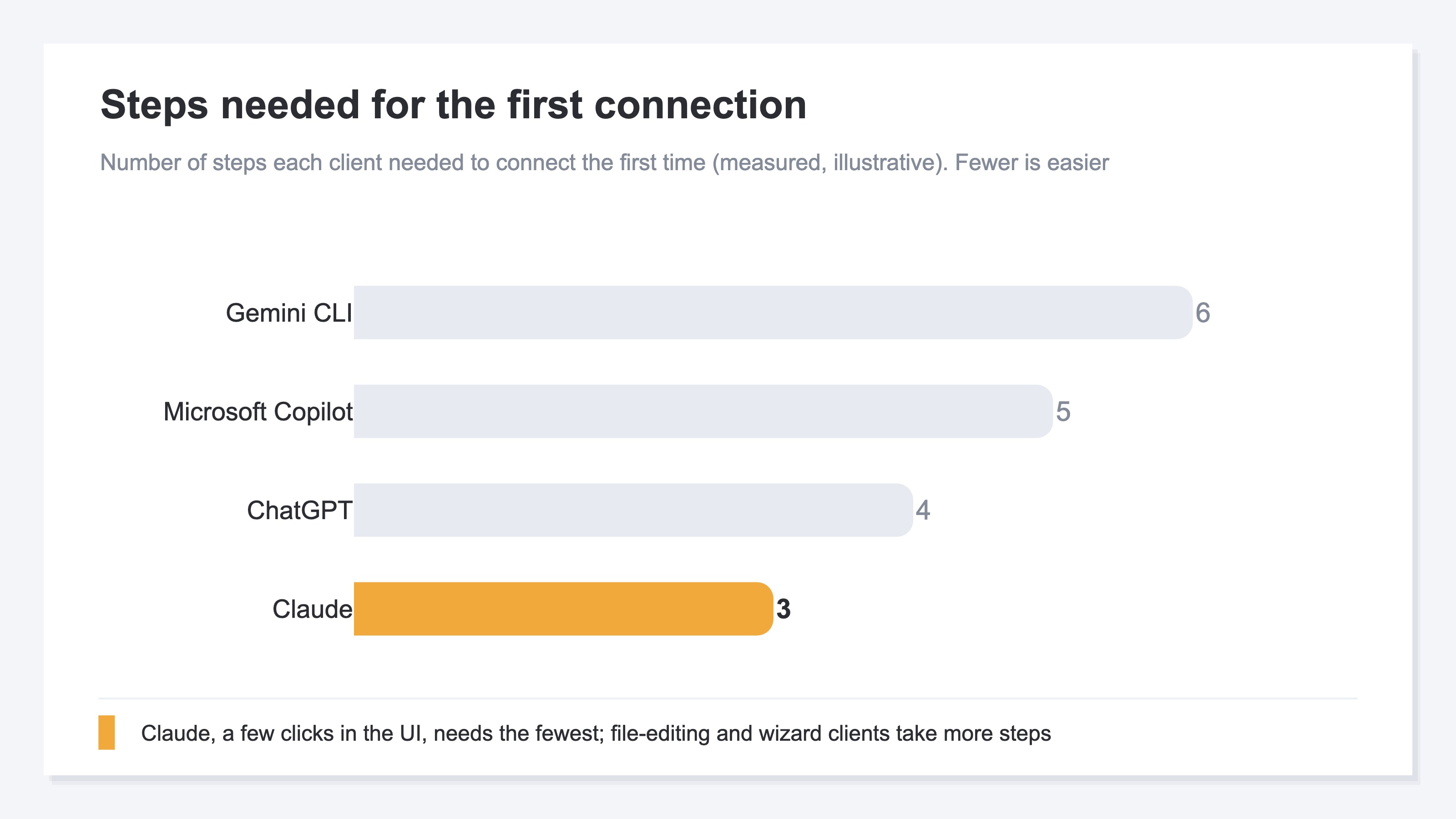
The concept of connecting really isn't hard. What's hard is re-learning these three differences each time you add a fourth or fifth client, and continually verifying across all of them that the same server behaves the same way. That was the real weight the checkmark never shows.
RevenueScope solution
Bottom line: if "re-checking the differences every time is heavy," then there's real value in owning one already-connected server for the step just before that — letting the AI read your own numbers and take on the judgment.
RevenueScope provides an MCP server that returns your EC store's numbers read-only (mcp.revenuescope.jp, OAuth 2.1, read-only, nine tools). It connects as-is to the four clients tested here — Claude, ChatGPT, Gemini CLI, and Microsoft Copilot. Once connected, you just ask the AI "which channel is driving my revenue?" and it reads your EC numbers directly and answers. No complex setup, no SQL. The first step of what to connect and how is laid out in EC's AI adoption starts with connecting your own data. Because it's read-only, there's no worry of rewriting or deleting data. Why read-only is safe is detailed in Is it safe to hand your own data to an AI?.
For example, ask a connected AI to "show me last month's overall numbers" and it returns something like this (display uses sample data from a fictional site).
| Metric | Value the AI reads and returns |
|---|---|
| Revenue | ¥442,961 |
| RPS (revenue per session) | ¥318.7 |
| CVR (share of sessions that purchased) | 3.2% |
| Bounce rate | 44.2% |
| ROAS (revenue against ad spend) | 2.47 |
These aren't the "what happened" GA4 gives you — they're the numbers for seeing, from revenue, "where to invest next." It's complementary to GA4 rather than competing, and the difference is that it can hand that decision material to the AI. Since RevenueScope itself is built to connect to Claude, ChatGPT, Gemini CLI, and Microsoft Copilot, you can start from "let the AI read the numbers and take on the judgment" without re-investigating each client's differences every time. Having one already-connected server that absorbs those differences — that's the single biggest value that offloads the weight this article has walked through.
FAQ#
Q1. If it says "MCP-supported," does every AI connect the same way?#
The entry point is the same, but the substance isn't. The connecting mechanism (MCP) is shared, yet the eligible plans, how authentication works, and how tools appear differ by client. Treat the checkmark as saying only "connects via MCP."
Q2. Can I connect an MCP server on a free plan?#
It depends on the client. Claude connects even on Free (with a limit on the number of connectors you can register). ChatGPT requires developer mode on a paid plan. Gemini can be handled through the open-source Gemini CLI (free) via a config file. The consumer Gemini app and the free personal Copilot have different targets for this use case (all as of July 2026).
Q3. What's reassuring about a read-only server?#
The AI only reads the data — it doesn't rewrite or delete it. Whichever client you test with, there's no worry of breaking the original data. That's exactly why you can run these compatibility checks freely.
Wrap-up#
The term "MCP-supported" spread rapidly over the past year. But all the checkmark promises is that something "connects via the shared MCP mechanism." Connect the same server to four AIs and the eligible plans, how authentication works, and how tools appear were all different.
Connecting itself isn't hard. What's heavy is re-learning the differences each time a client is added, and continually verifying across all of them that the same server behaves the same way. That's exactly why a read-only server is the right thing to try first: with no risk of breaking anything, you can run the compatibility checks freely.
RevenueScope provides an MCP server that returns your EC store's numbers read-only, connectable to these four clients. Hand the numbers to the AI and let it take on even "where to invest next." Use that entry point as one concrete example you can try without worrying about the differences.
See which ads actually drive revenue, at a glance
Free up to 5,000 sessions/month, AI connection included. No credit card required. Up and running in 5 minutes.
References#
- [1] Model Context Protocol "Authorization" (2025)
- [2] Anthropic "Get started with custom connectors using remote MCP" (2026)
- [3] OpenAI "Developer mode: apps and full MCP connectors in ChatGPT" (2026)
- [4] Google Gemini CLI "MCP servers with the Gemini CLI" (2026)
- [5] Microsoft Learn "Extend your agent with Model Context Protocol" (2026)




![[Research] The Web Is Being Rebuilt for AI Agents: What Online Store Owners Should Know](/_next/image?url=%2Fimages%2Fnews%2Fagent-first-web-ec-preparation.jpg&w=3840&q=75)