Should you compare your Shopify store's average order value and CVR with industry averages?
Public averages alone cannot tell you what to improve next. They combine stores with different products, traffic sources, and other conditions[1]. Start by comparing your store with its own past performance, then narrow the scope from the site total to channels and campaigns.
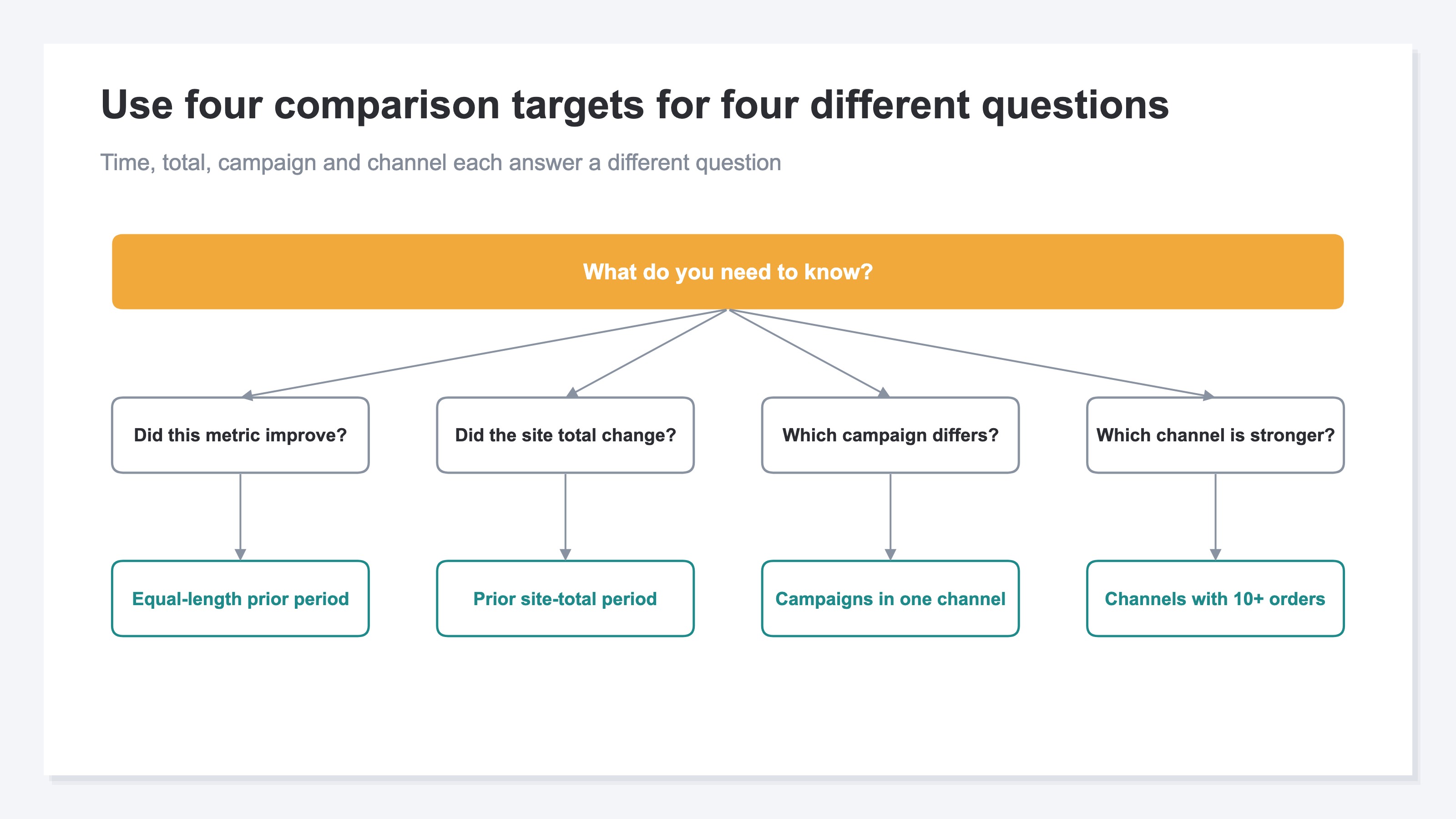
There are four practical comparison targets: the prior period, the site total, campaigns within the same channel, and channels with enough orders. This guide shows how to compare them under consistent conditions and identify what is reducing revenue efficiency. For ways to improve the metric itself, see How to Calculate and Increase Average Order Value (AOV).
Table of contents
Key takeaways#
- Treat public averages as a reference and use your store's prior period as the baseline
- Narrow the scope from the site total to channels and then campaigns
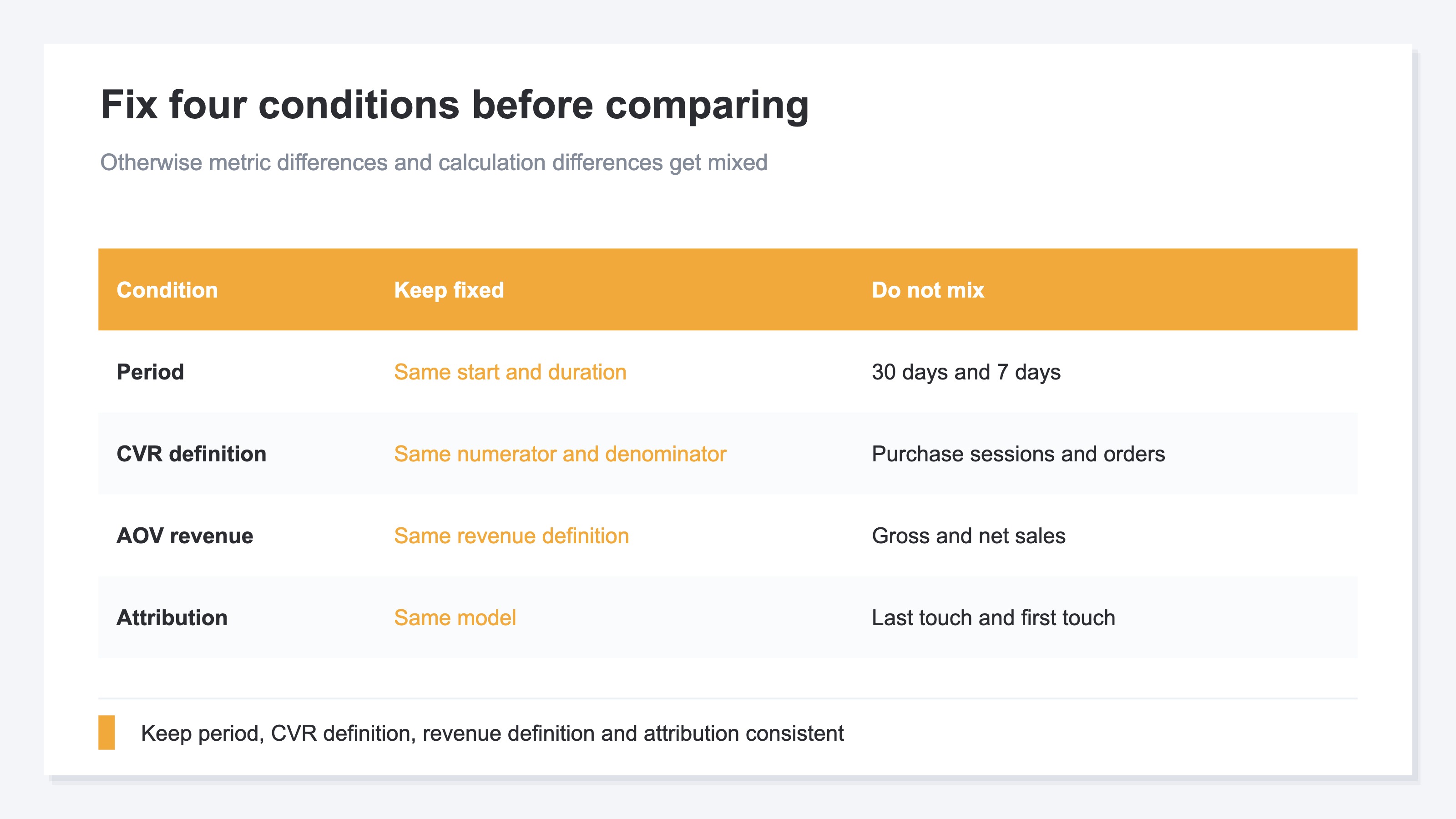
- Keep the period, CVR and AOV definitions, and attribution model consistent
- Connect AOV and CVR to RPS and prioritize by their effect on revenue efficiency
1. There Is No Single Correct AOV or CVR for Every Shopify Store#
Before using a universal average, check how your own data has changed under consistent conditions.
Average order value, or AOV, is the amount of revenue per order. In Shopify Analytics, it is calculated by subtracting discounts from gross sales, excluding post-order adjustments, and dividing the result by the number of orders[2].
CVR is the purchase rate. Shopify's analytics field reference divides the number of sessions that completed checkout by all sessions[2]. A Shopify explainer, however, gives a formula that divides orders by website visits[1]. The numerator can differ even when both metrics are called CVR, so comparisons must use the definition from the same report.
Higher is not always better for either metric. A store selling expensive products may have a high AOV but a longer consideration period before purchase. A low-priced subscription product may have a lower AOV but a higher CVR. Shopify also explains that CVR varies widely by industry, device, traffic source, price point, and purchase type[1].
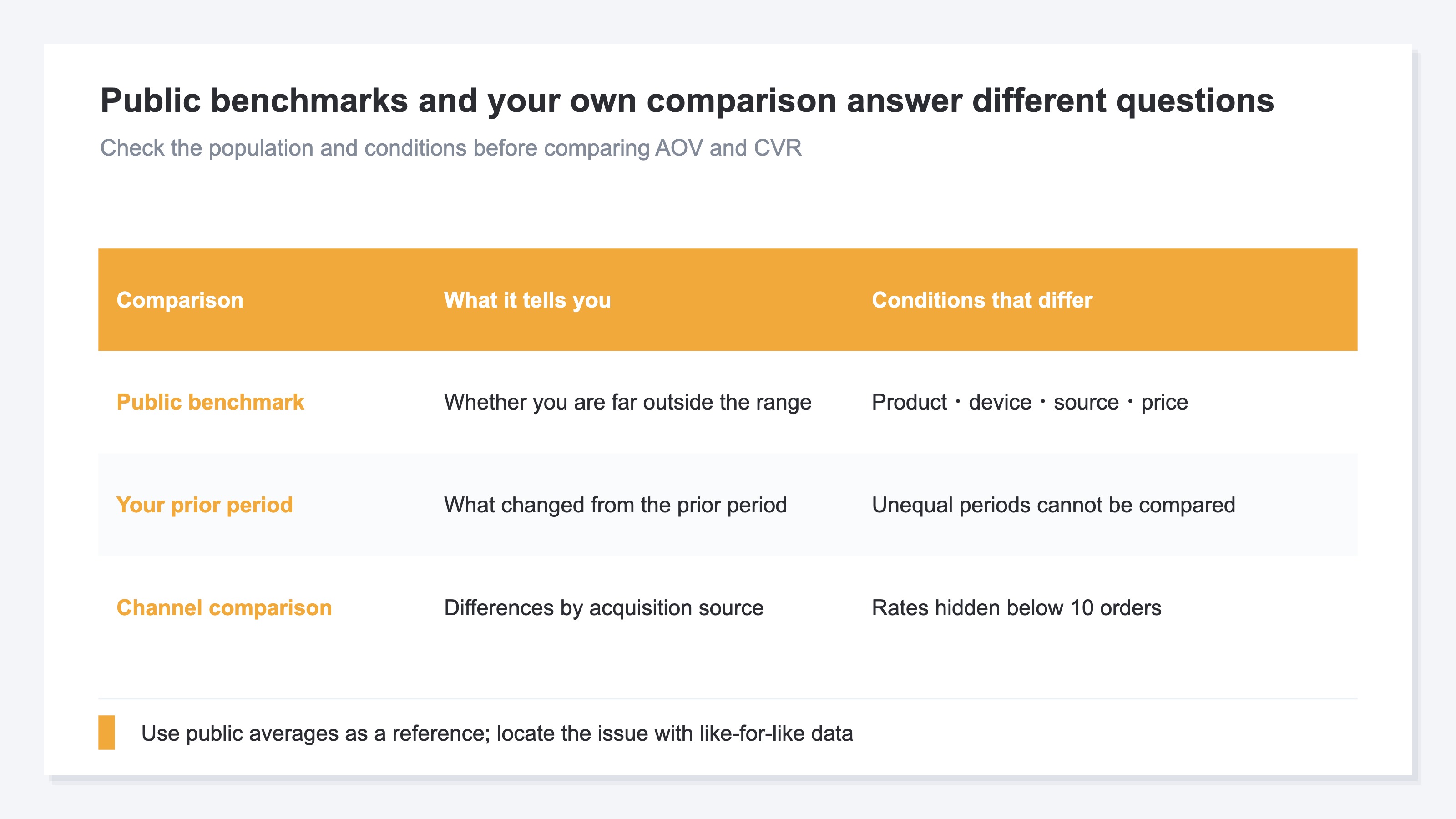
If you use a public average, treat it as a reference for checking whether your result is unusually high or low. It is not a suitable target to adopt unchanged. To decide what to improve, you need a like-for-like comparison within your own store.
If you need to check the Shopify and GA4 setup itself, see the GA4 Ecommerce Setup Checklist for Shopify.
2. Four Comparison Targets: Period, Site Total, Campaign, and Channel#
Compare in four directions: time, total performance, marketing initiative, and acquisition source.
The RevenueScope purchase metrics described below apply when the purchase event flows into the dataLayer on the same page as the storefront measurement tag.
That route has not been verified on Shopify's purchase confirmation page. Sites without it can still compare bot-excluded sessions by channel.
Prior period: Find where the change began#
Start with two periods of equal length, such as the latest 30 days and the preceding 30 days. Shopify's overview dashboard can also compare a selected period with the prior period or the same period in the previous year[3].
In the prior-period comparison, separate the change in AOV from the change in CVR. At this stage, do not assume that the cause is a product page or an ad.
Site total: Check the overall trend#
Next, check how the site-wide AOV and CVR changed from the prior period. On a site that meets the purchase-event ingestion condition, RevenueScope's site-wide CVR uses sessions in which a purchase occurred, while channel-level CVR uses orders. The numerators differ, so do not compare the two directly.
Campaign: Compare differences within the same channel#
If channels differ, drill down to utm_campaign within the relevant channel. A utm_campaign value is an identifier added to a URL for a sale name, distribution initiative, or other campaign. Shopify lets you review sessions and sales by UTM campaign, and its marketing reports let you select both the referring source and attribution model[2][4].
Even if Email has a low overall AOV, not every email campaign necessarily performed the same way. Separating a new-product announcement from a discount promotion can identify the campaign behind the decline. Compare campaigns within the selected period; do not treat the campaign view as if it included prior-period comparisons.
Channel: Compare only channels with enough orders#
Finally, compare channels that have enough orders. On a site that meets the purchase-event ingestion condition, RevenueScope displays AOV and CVR as “—” for channels with fewer than 10 orders. This avoids presenting a rate that changes sharply with one additional or missing order as a stable difference.
“—” does not mean 0 JPY or 0%. It means the comparison is on hold. You can still review sessions and revenue, but wait until enough orders accumulate before evaluating the channel by AOV and CVR.
3. Align the Period, Definitions, and Attribution Before Comparing#
Before building a comparison table, fix the period, the CVR and AOV definitions, and the method used to attribute revenue.
Period: Match the start date and duration#
Revenue changes with weekdays, sales, and seasons. Comparing 30 days with 7 days mixes differences in promotional conditions into the metric difference. Use periods of equal length, and note any sales or out-of-stock periods.
CVR definition: Use the same numerator and denominator#
Sessions are the denominator in these CVR definitions, but you must confirm the numerator used by the report. Shopify's field reference uses sessions that completed checkout, while its explainer uses orders[1][2]. Do not compare CVR values based on different definitions as though they were equivalent. Do not mix them with a rate that uses users as the denominator.
On a site that meets the purchase-event ingestion condition, RevenueScope uses different numerators by level. Site-wide CVR uses sessions in which a purchase occurred; channel and campaign CVR use orders. Do not directly compare site-wide CVR with channel CVR. Use each for a period-over-period trend at the same level or for comparisons between items at the same level.
Keep the revenue definition behind AOV consistent as well. Shopify Analytics uses gross sales minus discounts and excludes post-order adjustments when calculating AOV[2]. A different report that uses net sales or a post-refund amount may not match Shopify's AOV. That does not make either figure wrong; they cover different amounts.
Attribution: Compare channels under the same model#
An attribution model determines which channel receives credit for an order. A model that emphasizes the first visit and one that emphasizes the visit immediately before purchase can assign the same order to different channels. Shopify's marketing reports also let you select models such as first click, last click, and linear attribution[4].
On a site that meets the purchase-event ingestion condition, switching the RevenueScope model also changes channel-level orders, AOV, and CVR. Do not compare Google Search calculated with last touch against Email calculated with first touch. Record the model name and use the same model for every item in one decision. GA4 Attribution Analysis explains the role of each model in more detail.
Even with consistent conditions, a campaign rate can fluctuate sharply when the campaign has few orders. On a site that meets the purchase-event ingestion condition, RevenueScope's campaign breakdown displays AOV and CVR, but the 10-order threshold used for channels does not apply to campaigns. Check the order count at the same time and do not treat a small-number rate as conclusive.
4. Evaluate AOV and CVR with RPS to Find What to Improve#
Use RPS to decide whether AOV or CVR should take priority.
RPS, or Revenue Per Session, is revenue per session. On a site that meets the purchase-event ingestion condition, RevenueScope calculates channel and campaign AOV as revenue divided by orders and CVR as orders divided by sessions. At these levels, RPS equals AOV × CVR. This lets you assess both metrics through revenue efficiency instead of deciding from AOV or CVR alone. RPS vs. CVR explains this relationship in more detail.
The following fictional example covers 30 days using last-touch attribution. The two channels both have an RPS of 144 JPY, but their components differ.
| Channel | Sessions | Orders | AOV | CVR | RPS |
|---|---|---|---|---|---|
| Google Search | 2,000 | 24 | 12,000 JPY | 1.2% | 144 JPY |
| 500 | 18 | 4,000 JPY | 3.6% | 144 JPY |
These fixed values are fictional and illustrate the comparison; they are not the current sample-store figures.
Google Search combines a high AOV with a low CVR. Email has the opposite combination. Even though their RPS ranks are equal, the next checks differ. For Google Search, inspect the path from the landing page to completed purchase. For Email, compare the product mix and discount use by campaign.
What you need here is not a complete list of tactics for approaching a public average. Find the change from your own prior period, then narrow the scope from channel to campaign. For ways to improve AOV and CVR together, see How to Improve CVR and AOV at the Same Time.
For a one-off check, you can switch among reports in Shopify Analytics[3][4]. Once you repeat the process every month—keeping the period, revenue definition, and attribution model consistent while following the same order from site total to channel to campaign—you still need a way to record and maintain those conditions.
RevenueScope — how it helps
RevenueScope provides bot-excluded sessions by channel as a baseline for repeating the comparison over the same period.
At the site level, you can compare a selected period with the immediately preceding period. At the channel level, sessions appear under the same conditions so you can compare where visits came from.
Revenue, orders, AOV, CVR, and RPS appear only when the purchase event flows into the dataLayer on the same page as the storefront measurement tag. Current evidence does not establish that route on Shopify's purchase confirmation page. On sites that meet the condition, opening a channel also shows revenue efficiency by utm_campaign.
Even when RPS is the same, different combinations of AOV and CVR point to different areas to inspect. RevenueScope provides the data needed to identify where a difference originated while preserving the relationship among all three metrics. It lets you set priorities from your own store's measurements when public averages cannot.
Frequently asked questions#
Q1: What are good AOV and CVR values for a Shopify store?#
There is no target that applies to every store. CVR varies by product price, industry, device, traffic source, and purchase type[1]. Use public averages only as a reference for spotting a large outlier. Set targets by comparing your own store with its prior period under the same conditions.
Q2: Is a channel with fewer than 10 orders a bad channel?#
You cannot draw that conclusion. With nine orders, one additional or missing order can change AOV and CVR sharply. When the purchase event flows into the dataLayer on the same page as the storefront measurement tag, RevenueScope uses “—” to mean comparison on hold, not zero. Wait for more orders before evaluating the channel by AOV and CVR.
Q3: Why do AOV and CVR differ between Shopify and GA4?#
The services differ in how they define sessions, which orders they include, what counts as revenue, and where they attribute a sale. Shopify also notes that its metrics may differ from those in third-party analytics services[3]. Track changes with the same service and definition each time, and use the other service as supplementary information.
Q4: Can I compare campaign-level AOV and CVR with the prior period?#
When the purchase event flows into the dataLayer on the same page as the storefront measurement tag, RevenueScope's campaign breakdown displays AOV and CVR for the selected period. It does not include prior-period comparisons. Compare campaigns within the same channel for the current period, and do not treat the rates as conclusive when order counts are low.
Summary#
Public averages alone cannot determine what to improve first. Narrow the scope from the prior period and site total to channels and campaigns.
Keep the period, the CVR and AOV definitions, and the attribution model consistent. Put rates on hold for channels with fewer than 10 orders so that normal fluctuations in a small order count are not mistaken for stable differences.
Finally, connect AOV and CVR to RPS. Even when two channels have the same RPS, the next area to inspect differs between a high-AOV, low-CVR channel and the opposite combination. Tracking your own store under consistent conditions reveals improvement targets that a public average cannot.
See which ads actually drive revenue, at a glance
Free up to 5,000 sessions/month, AI connection included. No credit card required. Up and running in 5 minutes.